Remove objects from photos
Paint over the object, text or blemish you don't want; AI removes it and fills the area to match. It runs on your own device; your photo is never uploaded.
The first time, the AI model is downloaded once (~208 MB). It is then kept in your browser. One removal can take ~30 sec on a computer, longer on a phone.
Paint over the part to remove with your mouse or finger. Painted areas show in blue.
How to use it
- Choose your photo under "Photo". The first time, the AI model is downloaded once (~208 MB).
- Set the "Brush" size and paint over the part to remove with your mouse or finger. Painted areas show in blue.
- Press "Remove".
- Compare with "Before / after". If you are not happy, press "Undo" and try again in smaller pieces.
- Save with "Download PNG" or "Download JPEG".
What it is for
For removing a stray item, a cable, a date stamp or a blemish from a photo. It suits clutter in real estate photos, marks on product photos and small objects in the background of travel photos.
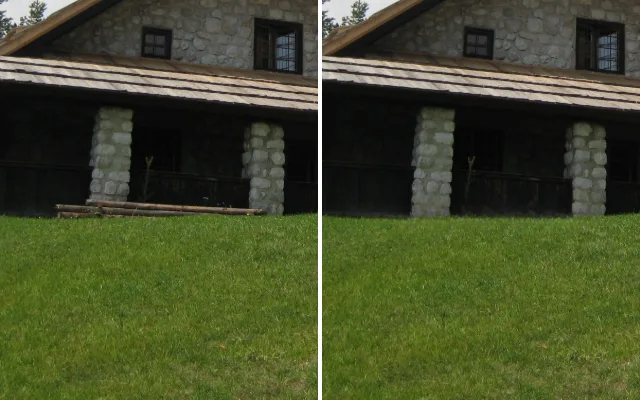 BeforeAfter
Limits and tips
- It works well for small objects, text, blemishes and plain backgrounds. Large areas or detailed parts such as faces can leave traces.
- Only the area around what you painted is processed and put back; the rest of the photo is unchanged.
- Photos longer than 4096 pixels on the long side are reduced to that size.
- The brush can be set from 6 to 120 pixels.
- You can undo up to 10 steps.
- The model file is 208 MB; it downloads once and is then kept in your browser.
- One removal can take about 30 seconds on a computer, depending on its speed. Phones are slower, and older phones may run out of memory.
- If the photo has transparent areas, they turn white in the JPEG download and stay transparent in the PNG. JPEG quality is 0.92.
- One photo is opened at a time.
Privacy
Your photo is never uploaded; the removal happens inside your browser. Only the AI model is downloaded once, from Hugging Face. During that download Hugging Face sees your connection details (IP address), as any website does; it never sees your photo.
Frequently asked questions
Is it free? Do I need an account?
It is free and there is no account. No watermark is added.
Is my photo uploaded anywhere?
No. The removal happens inside your browser, on your own computer or phone. Only the AI model is downloaded once from the internet.
Does my photo get smaller?
No. Only the area around what you painted is processed and put back; the rest of the photo stays as it was. Photos larger than 4096 pixels are reduced to that size.
Is the result always perfect?
No. It works well for small objects, text, stains and plain backgrounds. Large areas or detailed parts such as faces can leave traces; undo and try again in smaller pieces.
Why does it take so long?
The model is large and runs in your browser on a single thread. Each removal can take more than half a minute depending on your computer; phones are slower and older phones may run out of memory.
Can I remove text from an image?
Yes. Paint over the text and press "Remove". It works best on text over a plain background.
Can I remove a person from a photo?
It works well when the person is small and the background is plain. A person who fills a large part of the photo can leave traces; undo and try again in smaller pieces.
Is the model downloaded every time?
No. It downloads once (~208 MB) and is kept in your browser. If you clear your browser data, it downloads again.
How many steps can I undo?
Up to 10.
Does it work on an iPhone or Android phone?
Yes, but it is slower. The model is large, so older phones may run out of memory.
Which file do I get?
A PNG or a JPEG. No watermark is added.
Related tools
- White background for product photos — remove the whole background.
- Brighten photos and fix color — brighten a dark photo.
- Day to dusk photo — give an exterior photo a sunset look.
- Guide: How to remove an unwanted object from a photo
Last updated: