How to remove an unwanted object from a photo
In object removal, the result is affected by the size of the area you paint. This guide explains how the tool handles the painted area and the practical rules that follow from it.
Open the tool: Remove objects from photos
A photo may have a stray cable, a date stamp, something left on the ground or a stain. In the Remove objects from photos tool you paint over that spot. The AI removes it and fills the area to match its surroundings. The size of the area you paint affects the result. The reason is the way the tool works.
How the tool handles the painted area
The tool does not give the whole photo to the AI. It cuts out a square piece around the area you painted. The side of that piece is about 1.8 times the width or height of the painted area, but at least 512 pixels. The piece cannot be larger than the photo. If the photo does not allow a square piece, the piece is not square and is stretched to 512×512 pixels.
Then it resizes that piece to 512×512 pixels. The model (called LaMa, an AI model that fills a painted area by looking at what is around it) fills this small square. The tool scales the result back to its original size and pastes it only inside the area you painted. The edge of the painted area is widened by a few pixels and softened, so no trace of the old object's color stays at the edge. The rest of the photo does not change at all.
Two things follow from this:
- Small area, sharp result. If the painted area is smaller than about 284 pixels, the piece is 512 pixels anyway. The model fills it at the photo's own resolution.
- Large area, soft result. If you paint an area 1000 pixels wide, the piece becomes about 1800 pixels. It is shrunk to 512 pixels, filled, and enlarged again. The filled area can look blurrier than its surroundings.
The model only sees the inside of the piece. It fills the gap by looking at the grass, wall or sky around it in that piece.
Painting rules for a good result
- Paint the whole object, shadow included. An unpainted tip or shadow is not removed and looks cut off next to the fill.
- Do not paint far past the edges. Every painted pixel is made up again. Painting wider than needed makes the area bigger and the result softer.
- Remove distant objects one at a time. Everything you paint before pressing "Remove" is handled in one piece. If you paint two objects at opposite ends of the photo, the space between them goes into the piece too, and the piece becomes very large. Paint and remove one, then move to the next.
- Remove a large object in parts. Paint and remove one side first, then the rest. At each step the model fills a smaller area, more sharply.
- Match the brush to the object. The "Brush" slider goes from 6 to 120 pixels. That size is relative to how big the photo looks on your screen. Use a thin brush for a thin cable and a thick one for a large stain.
Painted areas show in blue. "Clear paint" removes paint you have not removed yet. If you do not like a result, press "Undo". Up to 10 removal steps can be undone. The "Before / after" button shows the original photo; use it to compare the two.
When it works well, and when it does not
The tool's own page says results are good for small objects, text, stains and plain backgrounds. It also says traces can remain on large areas or on detailed parts such as faces.
| Situation | What to expect |
|---|---|
| A small object on a plain background such as grass, wall or sky | A good result |
| Text or a date stamp on a plain background | A good result |
| A large area | Traces may remain; the fill may look soft |
| A detailed area such as a face | Traces may remain |
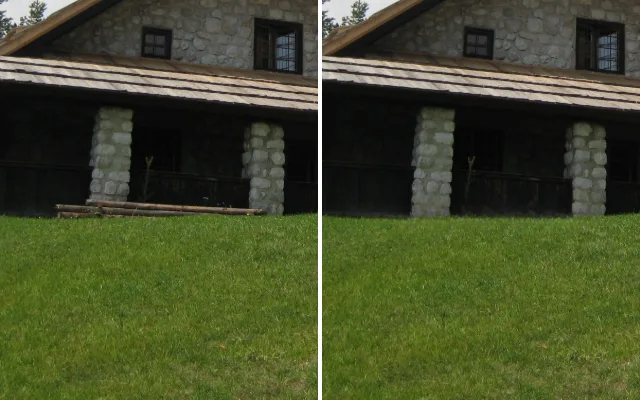
In the sample image, the logs sit in front of grass and the dark shade of a porch. The removed area is filled with grass and shade. If the background is not plain (a patterned rug or a busy shelf, for example), check the result carefully with "Before / after". The model cannot know what was really behind the object; it fills the gap only by looking at what is around it.
Other things to know
- First use: The model downloads once from Hugging Face (~208 MB) and is kept in your browser. The tool checks the size and checksum of the downloaded file; a damaged or incomplete download is not saved.
- Time: One removal can take about 30 seconds on a computer. It takes longer on a phone. Because the model is large, older phones may run out of memory.
- Size: Photos longer than 4096 pixels on the long side are scaled down to that size. Photos larger than 60 megapixels are not opened.
- Saving: Use "Download PNG" or "Download JPEG". The file name is the original name with "-clean" added.
When this tool is the wrong choice
- You want to remove the whole background: for product photos, the White background for product photos tool does that.
- The problem is light, not an object: for dark or yellowish photos, use the Photo light and color fix tool.
- The photo will be used as a record or as evidence: the filled area is the AI's guess and does not show what was really there.
Your photo is never uploaded; the removal happens inside your browser. Only the AI model is downloaded once, from Hugging Face.
Open the tool: Remove objects from photos
More guides
Last updated: