Turn a photo into a coloring page
Choose a photo and get a coloring page for your child: black lines on a white background. Turn a photo of your pet, a toy or your house into a coloring page, then download it as PNG or A4 PDF and print. Your photos are never uploaded.
Sharp photos with a plain background work best. If there are too many lines, lower the detail.
How to use it
- Choose one or more photos under "Photos" (up to 20; each one becomes a page).
- Pick the "Detail": "Low (for young children)", "Medium" or "High".
- Pick the "Line thickness": "Thin", "Medium", "Thick" or "Very thick".
- Click the thumbnails to preview the pages.
- Press "Download this page (PNG)" or "Download all as PDF (A4)" and print.
What it is for
For parents, teachers and anyone preparing an activity for children. A photo of something the child knows (a pet, a toy, the house, the car) becomes a coloring page. You can put several photos into one PDF to make a small coloring book.
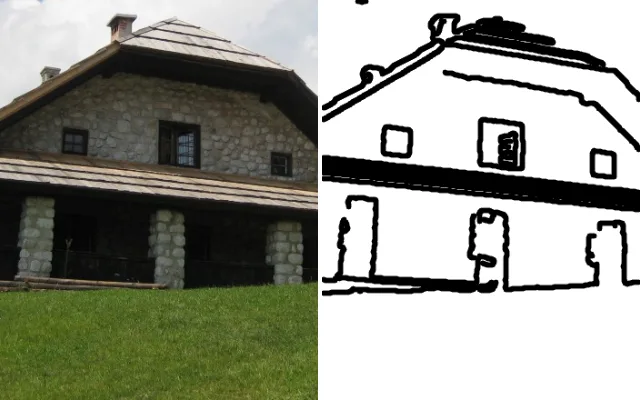 BeforeAfter
Limits and tips
- Up to 20 photos are used; each photo becomes one page.
- Sharp photos with a clear subject, a plain background and good light work best.
- Busy photos give too many lines; choose "Detail: Low".
- Photos longer than 1600 pixels on the long side are reduced to that size before the lines are drawn.
- In the PDF, each photo is its own A4 page. A landscape photo goes on a landscape page and a portrait photo on a portrait page, with a 10 mm margin.
- PNG gives only the selected page; PDF gives all pages.
- No AI is used: the tool finds the edges in the photo, removes short fragments and thickens the lines. It does not draw anything that is not in the photo.
Privacy
Your photos are never uploaded; the lines are drawn inside your browser. Everything is gone when you close the page.
Frequently asked questions
Is it free? Do I need an account?
It is free and there is no account. We add no logo or watermark to the page.
Are my photos uploaded anywhere?
No. The lines are drawn inside your browser, on your own computer or phone. Everything is gone when you close the page.
Which photos work best?
Photos with a clear subject, a plain background and good light. Busy photos give too many lines; choose "Detail: Low".
Can I get several pages in one file?
Yes. Choose several photos and press "Download all as PDF". Each photo becomes its own A4 page.
How do I turn a photo into a coloring page without AI?
Choose the photo, set the detail and line thickness, then download a PNG or PDF. The tool uses classic edge detection, not AI.
Do you have ready-made coloring pages?
No. The tool does not offer ready-made pictures; it turns your own photo into a coloring page.
How many photos can I add?
Up to 20. Each one becomes its own A4 page in the PDF.
How does a landscape photo fit on A4?
It goes on a landscape A4 page and is scaled to fit, with a 10 mm margin.
There are too many lines, or the lines are too thin. What can I do?
For too many lines, choose "Detail: Low". For thin lines, set "Line thickness" to "Thick" or "Very thick".
Related tools
- Remove objects from photos — remove clutter from the photo first.
- Brighten photos and fix color — brighten a dark photo first.
- White background for product photos — remove the background for a plainer photo.
- Guide: How to make a coloring page from a photo
Last updated: