How to write text for a short vertical video
In a short text video, each line is a scene. The length of a line sets both how long the scene lasts and how big the text is; this guide explains both.
In a text-to-video, your text carries everything. So the text has to be big enough to read and stay on screen long enough to read. This guide shows how to split your text in the Text to video tool and what each setting changes.
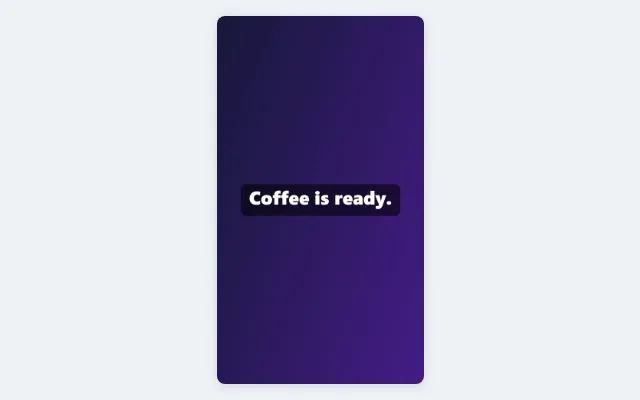
First: one line, one scene
The tool turns every line you type into its own scene. Empty lines are skipped, and spaces at the start and end of a line are removed. Up to 30 lines are used. Anything beyond that is cut, and the tool tells you how many lines it cut. The text box takes at most 3,000 characters.
So do not write your text like a paragraph. Put one idea on one line. If you want to split a long sentence in two, type two separate lines; the tool shows them as two scenes.
Line length sets the timing
When "Scene length" is set to "Based on text length", the tool works out the time for you. The rule is: 1.6 seconds, plus 0.06 seconds for every character in the line. Letters, spaces and punctuation marks all count as characters. The result is never shorter than 2.5 seconds and never longer than 8 seconds.
| Line length (spaces included) | Scene length |
|---|---|
| 15 characters or fewer | 2.5 seconds |
| 24 characters | about 3 seconds |
| 50 characters | about 4.6 seconds |
| 107 characters or more | 8 seconds |
The lesson from this table: a line longer than 107 characters does not stay on screen any longer. The text grows, but the time does not. Splitting a long sentence gives the viewer more time to read.
You can also pick a fixed length: 3, 5 or 8 seconds. Then every scene gets the same time. If your lines are about the same length, a fixed time gives a steady rhythm. If they vary a lot, the automatic timing usually feels more natural.
The whole video cannot be longer than 120 seconds. If it is, the tool asks you to shorten the text or pick a shorter scene length. The info line under the preview shows the number of scenes, the total seconds and the video size. You can watch that line as you type.
Line length also sets the text size
The tool starts the text large: 9 percent of the video's short side. In a vertical video that is about 97 pixels. Then it checks whether the text fits. If the text is wider than 84 percent of the frame or taller than 60 percent of it, the letters shrink step by step. They shrink until the text fits or reaches 24 pixels.
So a long line means small letters. Small letters are hard to read on a phone. A short line stays big and is quick to read.
Square and landscape videos leave less height for the text, because in both the video is 1080 pixels tall. The same long line shrinks sooner in a square video than in a vertical one. A landscape video is 1920 pixels wide, so its lines are wider.
Settings that help reading
- Put a dark box behind the text: When on, a see-through black box is drawn behind the text. It keeps the text readable over bright or busy parts of a photo. When off, white text gets a soft shadow.
- Text position: "Middle" puts the text in the center. "Top" starts the text at 12 percent of the height. "Bottom" ends it at 88 percent. If the important part of a photo is in the middle, move the text to the top or bottom.
- Background color: Used only when there are no photos; it draws a two-color background that turns slowly. If you pick "Plain white" and turn off the dark box, the text comes out dark.
If you add photos
Photos go behind the scenes in order. The tool takes at most 30 photos in one pick. A photo larger than 60 megapixels is skipped, and the tool tells you. A photo whose long side is over 2160 pixels is shrunk first, to save memory. If there are fewer photos than scenes, they repeat from the start. The tool enlarges each photo to fill the whole frame, so a landscape photo in a vertical video loses its left and right sides. In each scene the photo slowly zooms in or out, and it is darkened a little so the text stays readable.
So choose photos with the main subject in the middle. A dark photo looks even darker after that shading. You can brighten it first with the Photo light and color fix tool.
Example: a four-line announcement
The tool's "Use sample text" button puts in these four lines:
- Coffee is ready.
- Try something new today.
- Small steps make a big difference.
- Follow for more!
The longest line has 34 characters. With automatic timing the scenes last about 2.6, 3.0, 3.6 and 2.6 seconds. The total is about 11.8 seconds. Each line carries one idea, and none comes close to the time limit.
There is a half-second transition between scenes; the old scene fades out as the new one comes in. The text also fades in over about 0.6 seconds at the start of each scene. During these short moments the text is not fully readable. So do not put many words into a scene that gets only the shortest 2.5 seconds.
When this tool is the wrong choice
- You need a voice-over: the tool does not make speech. You can only add your own music file.
- You already have a video and want its speech written out: the Clip maker with subtitles is made for that.
- You are making a home or shop listing: the Real estate listing video tool adds price, rooms and location.
- You want generated footage: this is not an AI tool. The video holds only your text and your photos.
The video is made inside your browser. Your text, photos and music file are never uploaded.
More guides
Last updated: