How to make a real estate listing video from photos
A listing video is the photos you pick, shown one after another, with short lines of text. This guide covers photo order, text and music, along with what the tool actually does with each.
Open the tool: Real estate listing video
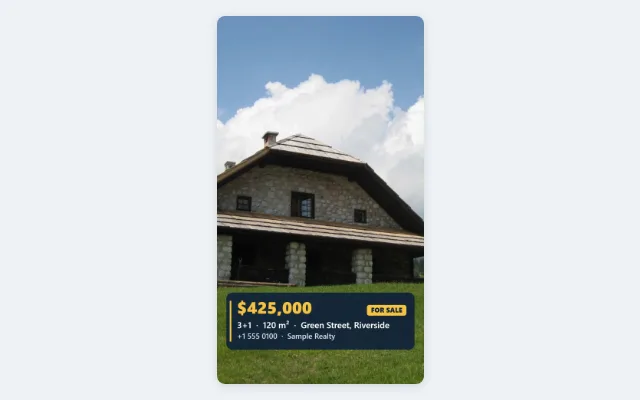
A home listing already has photos. The Real estate listing video tool shows them one after another, adds a band with price, rooms, size and location over them, and can put a card at the start and the end. You do not need video editing skills. A little planning still makes your work easier.
How the video is built
The tool builds the video in three parts:
- Opening card (3 seconds): A blurred copy of the first photo shows faintly under the theme color; on top are the listing type tag, the title, the price and a line with rooms, size and location.
- Photos: Each photo shows for the time you pick: 2, 3, 4 or 5 seconds. An info band sits at its top or bottom.
- Contact card (3 seconds): A blurred copy of the last photo shows faintly under the theme color; on top are "For details and viewings", the phone number, the name or office, and the price.
You can switch off either card with its checkbox. If phone and name are both empty, the contact card shows the title and price instead.
The length is easy to work out: number of photos times time per photo, plus 3 seconds for each card. The line under the preview also shows the number of photos, the total seconds and the video size.
Photo order
Photos go into the video in the order you choose them. If you make another selection, the new photos are added at the end. So if you want an exact order, choose the photos one at a time or in small groups, in the order you want. To change the order later, press "Remove photos" and choose them again. Up to 30 photos are used; the rest are left out and the tool tells you.
One idea is to order them like a walk through the home: outside, entrance, living room, kitchen, bedrooms, bathroom, balcony or garden. This is only a suggestion; the tool does not reorder anything for you.
The first and last photos matter more. The tool puts a blurred copy of the first photo behind the opening card and of the last photo behind the contact card. On the cards the theme color covers most of the blurred photo, so the photo only shows faintly.
Choosing photos
- Landscape or portrait? What happens to a landscape photo in a vertical video depends on "Photo fit". "Fill the screen" makes the photo fill the whole frame and crops its edges. "Show the whole photo" keeps the full photo and fills the empty space with a blurred, slightly darkened copy of it. If you want a whole room to stay in view, the second option is safer.
- Motion: While it is on screen, each photo slowly zooms in or out and drifts a little to the side. A detail right at the edge of a photo can slip out of the frame during this.
- Light: You can brighten dark room photos first with the Photo light and color fix tool.
- Large files: Photos longer than 2160 pixels on the long side are scaled down to save memory. Photos larger than 60 megapixels are skipped.
Text: what goes where, and how long it should be
Every field you fill in shows up somewhere in the video. Empty fields are not shown. If you set the listing type to "Do not show", the FOR SALE or FOR RENT tag does not appear either.
| Field | Where it shows |
|---|---|
| Title | Opening card (up to 3 lines); also the contact card if there is no phone or name |
| Listing type | Tag on the opening card and the info band |
| Price | Opening card, info band, contact card |
| Rooms, Size, Location | Up to 2 lines on the opening card, one line on the info band |
| Phone, Name or office | Info band and contact card |
If you type only a number in "Size (m²)", the tool adds "m²". If you type only a number in "Rooms", it adds "rooms". Something like "3+1" stays as it is.
Keep it short. Text that does not fit is first made smaller. If it still does not fit, the end is cut off and replaced with "…". The line most likely to be cut is rooms, size and location on the info band, because all three sit side by side on one line. A short location, like "Street, district", makes this less likely. The fields take at most this many characters: title 80, price 30, rooms 12, size 16, location 60, phone 30, name or office 40.
The "Info band" setting puts the band at the bottom or the top of the photo. The band covers part of the photo, so look at your photos before you decide whether it sits at the bottom or the top. There are four color choices; the band and cards use the one you pick.
Music
Music is optional and must be your own file. As the tool's page says, you must have the right to use the music. Files larger than 20 MB are not accepted.
If the music is shorter than the video, it loops. If it is longer, it is cut when the video ends. It fades in over about 0.3 seconds and fades out over the last 1.5 seconds. So you do not need to worry about where the music ends.
Example: an 8-photo apartment video
Say you have 8 photos and pick 3 seconds per photo, with both cards on. The length is 8 × 3 = 24 seconds, plus 6 seconds for the two cards, 30 seconds in total. For a shorter video, pick 2 seconds per photo or use fewer photos.
There is a half-second fade between photos. The info band fades out as the video moves to a card and fades back in on the photos.
When this tool is the wrong choice
- You want a logo: there is no logo field. The name in "Name or office" is shown as text.
- You need a voice-over: the tool does not make speech.
- You already filmed the home: this tool works with photos and does not open video files.
For the listing text itself, the Listing description writer makes a title, a description and a social post.
Your photos, the details you type and your music file are never uploaded. The video is made inside your browser.
Open the tool: Real estate listing video
More guides
Last updated: