Vocal remover (reduces the lead vocal)
In a stereo song, it reduces the sound that is the same in both speakers. In most songs the lead singer is in the middle, so the music stays. It reduces the vocal; it does not remove it completely. It is not AI; it is the classic "center channel" method. The song is processed on your own device; your file is never uploaded.
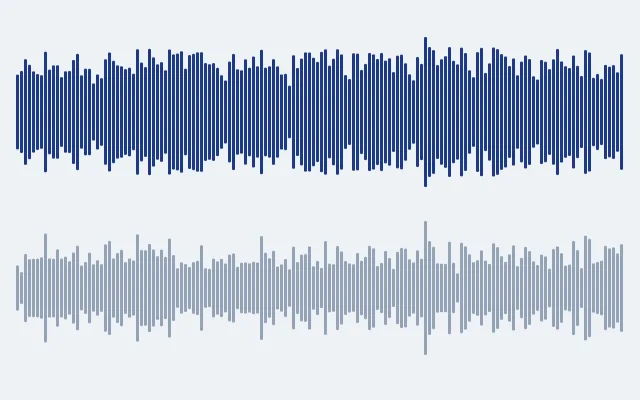
Original on top, karaoke below. Where the blue part got smaller, the sound in the middle was reduced.
How to use it
- Choose your stereo song under "Song" (MP3, WAV, M4A or OGG; up to 10 minutes).
- Pick "How much to reduce": "Strong", "Balanced" or "Light (keeps more of the instruments)".
- Leave "Keep bass and drums" ticked so the bass and drums stay in place.
- Press "Reduce the vocals".
- Listen to "Original" and "Karaoke (vocals reduced)" to compare, then press "Download the karaoke (WAV)".
What it is for
For karaoke at home, singing practice or rehearsing over a backing track. It suits people who do not want to upload a song to a website: the file never leaves the device and there is no limit on how many songs you process. If you need a clean instrumental or a separate vocal file, this tool is not enough.
Limits and tips
- The vocal usually does not go away completely; it gets quieter. Reverb and backing vocals panned to the sides partly remain, and other instruments in the middle can get a little quieter too.
- It works on stereo recordings only. It does not work on mono recordings, and the tool tells you. A recording whose two channels are almost identical also counts as mono.
- In old recordings the singer can be on one side; then the result is weak.
- The song can be up to 10 minutes and the file up to 200 MB.
- The output is a WAV file: 16-bit, stereo, 44.1 kHz, about 10.6 MB per minute (44,100 × 2 channels × 2 bytes × 60 seconds). There is no MP3 output.
- With "Keep bass and drums" ticked, sound below 90–150 Hz is kept; nothing above 16 kHz is touched.
- It does not give a separate vocal file; only the music with the vocal reduced.
- Nothing is downloaded from the internet; there is no model.
- Only process copyrighted songs for your own personal use.
Privacy
Your song is never uploaded; it is processed inside your browser. Nothing is downloaded and nothing is sent.
Frequently asked questions
Does the vocal go away completely?
Usually not; it gets quieter. The method removes the sound that is the same in the left and right speaker. Echo (reverb) and backing vocals spread to the sides partly stay. Other instruments in the middle can get a little quieter too.
Which songs does it work on?
Stereo recordings with the lead singer in the middle. It does not work on mono (one channel) recordings; the tool tells you. In old recordings the singer can be on one side; then the result is weak.
Can I get the vocal as a separate file?
No. This method cannot give a clean vocal file. It only gives the music with the vocal reduced.
Is my file uploaded anywhere?
No. The song is processed inside your browser, on your own computer. Nothing is downloaded and nothing is sent.
Is it free? Do I need an account?
It is free and there is no account. Only process copyrighted songs for your own personal use.
How do I remove vocals from a song without AI?
Choose a stereo song, press "Reduce the vocals" and download the karaoke WAV. The tool uses the classic center-channel method, which reduces the lead vocal rather than removing it completely.
How is this different from AI vocal removers?
It uses no AI and never uploads your song. In return, the vocal does not go away completely and you do not get a separate vocal file.
Can I download an MP3?
No. The output is a WAV file (16-bit, stereo, 44.1 kHz).
Can I use a YouTube link?
No. The tool only opens an audio file from your device.
What does "Keep bass and drums" do?
Bass and kick drum are usually in the middle too. With this box ticked, sound below 90–150 Hz is not reduced.
Related tools
- Clip maker with subtitles — transcribe the speech in a video and get a clip with subtitles.
- Text to video — a text video with your own music.
- Real estate listing video — a listing video with music.
- Guide: How to do karaoke at home
Last updated: