How to do karaoke at home
How to turn your own song file into karaoke music, the honest limits of the method, and tips to tell in advance which songs will work.
Open the tool: Vocal remover (karaoke)
For karaoke at home you need a song file, a screen with the lyrics and a version of the music with the lead vocal turned down. This guide explains how the vocal remover works, which songs give good results and why some songs do not.
What you need for karaoke
- The song as an audio file: MP3, WAV, M4A or OGG. It must be stereo, at most 10 minutes long and at most 200 MB.
- Karaoke music: the song with the lead vocal reduced. The tool gives you this as a WAV file.
- Lyrics: open them on a phone or a second screen. The tool does not show lyrics.
- Speakers or headphones: to play the music.
How the method works
The tool does not use AI. It uses the classic "center channel" method. In most stereo songs, the lead vocal sounds the same in the left and right speakers, so it seems to come from the middle.
The tool splits the song into short slices of time and into pitches. In each piece it compares the sound in the left and right speakers. Where the two are the same, it turns that piece down. So the sound in the middle drops, and sound that differs between the two sides stays.
This method has two consequences. First, everything in the middle gets quieter. Not only the singer: another instrument placed in the middle can get a little quieter too. Second, sound that differs between left and right stays. Reverb added to the voice and backing vocals spread to both sides partly stay for this reason.
So the vocal usually does not go away completely; it gets quieter. The tool also does not give a separate vocal file; it only gives the music with the vocal reduced.
Which songs does it work on?
- On stereo recordings with the singer in the middle. The method finds the sound in the middle and reduces it.
- It does not work on mono (one-channel) recordings. If left and right are the same, there is nothing in the middle to tell apart. The tool says "This recording is mono (one channel)..." when you open such a file and does not process it. It also treats recordings with two nearly identical channels as mono.
- On old recordings with the singer on one side, the result is weak. If the voice is not in the middle, the method cannot find it.
- If other instruments are in the middle, they can get quieter too.
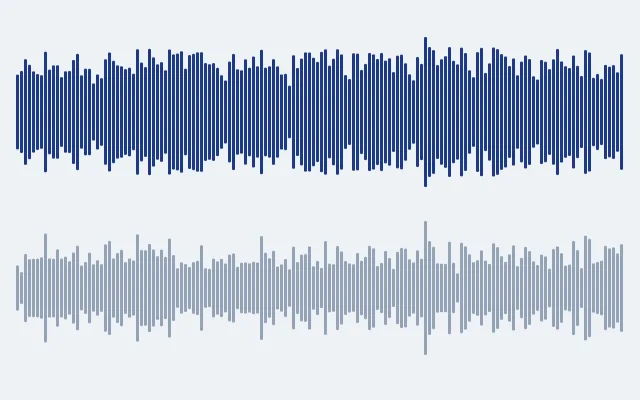
There is no sure way to know in advance. The easiest thing is to try. When the tool is done, it shows two players: "Original" and "Karaoke (vocals reduced)". You play them one after the other and compare. Two waveforms are drawn as well: the original on top and the karaoke below. As the page says, where the blue part got smaller, the sound in the middle was reduced.
Using the tool step by step
- Pick the file in the "Song" box. The tool opens it and shows its length and channels, for example "3:45 · stereo".
- If the file is larger than 200 MB, the tool says "The file is larger than 200 MB." If the song is longer than 10 minutes, it says "The limit is 10 minutes." In both cases nothing is processed.
- Pick a setting in the "How much to reduce" box. The "Keep bass and drums" box is ticked to start with.
- Press "Reduce the vocals". A progress bar appears and the tool says "Keep this tab open."
- When it is done, the tool says "Done in ... seconds. Listen and compare with the original." The "Download the karaoke (WAV)" button gives you the file.
What the settings do
| Setting | What it does | When |
|---|---|---|
| Strong | Also turns down sounds that are only partly alike on the two sides. More of the vocal goes. | When too much of the vocal is left. Instruments drop more too. |
| Balanced | The starting setting. | Try this first. |
| Light | Turns down only sounds that are almost the same on both sides. It keeps more of the instruments. | When the music sounds too damaged. More of the vocal stays. |
| Keep bass and drums | Leaves everything below 90 Hz alone and fades the reduction in between 90 and 150 Hz. | It is on to start with. Bass guitar and kick drum are often in the middle, so they are kept. |
Whatever you pick, very high sounds above 16 kHz are left alone; the reduction fades out above 13 kHz.
If you do not like the result, you can process the same file again with another setting. Compare the karaoke version with the original each time.
The output file
The tool gives the karaoke music as a 16-bit, stereo, 44.1 kHz WAV file. The file name is the song's name with "-karaoke.wav" added. WAV is not compressed, so each minute takes about 10.6 MB. A four-minute song comes to about 42 MB. If the file is too big, you can convert it to MP3 with another program; the tool does not make MP3s.
The tool also cannot open a link such as a YouTube address; it works only with a file on your device.
When this method is not enough
If the vocal has to be almost completely gone, this method is not enough. The method does not delete the sound; it reduces the sound in the middle. The tool's page also says that the vocal usually does not go away completely but gets quieter.
Copyrighted songs
The tool's page carries this note: process copyrighted songs only for your own personal use.
Your song is never uploaded; the work is done inside your browser. For karaoke, open the vocal remover.
Open the tool: Vocal remover (karaoke)
More guides
Last updated: